Building rebaseable container images with Docker from scratch
When you enable automatic base image updates (or runtime rebasing) on Cloud Run, the
platform patches operating system packages and language runtimes (such as Node.js or
Python) without rebuilding your container image. The recommended way to use base image
updates is to omit the Dockerfile from your project directory and use a
source-based deployment. Still, I wanted to build a rebaseable container image
myself with Docker to see how these images are structured and what Cloud Run actually
expects.
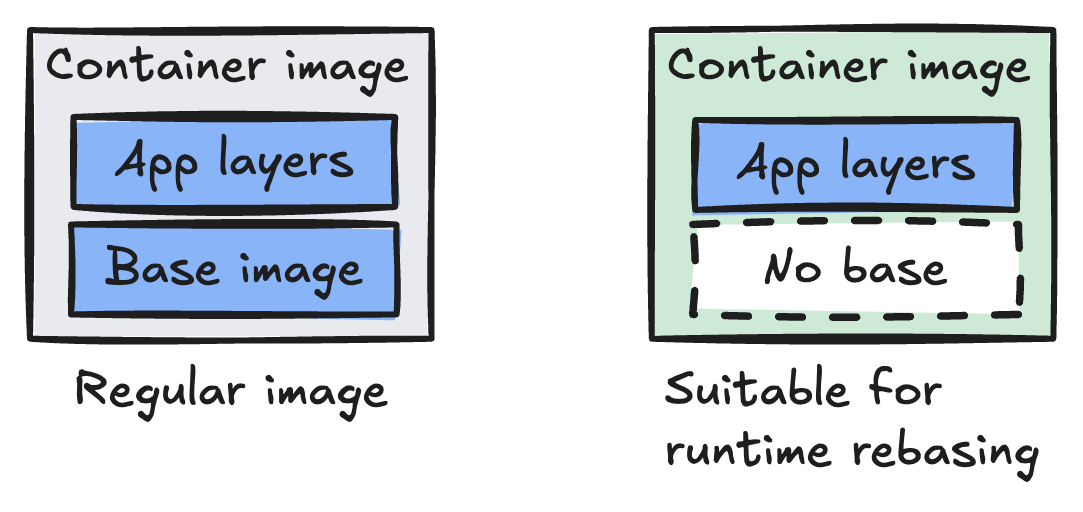
A regular container image bundles both the base image (the OS packages and language runtime) and your application layers. For runtime rebasing to work, Cloud Run needs an image that contains only the application layers and no base image, so the platform can rebase those layers onto a Google-managed base image when starting a container instance:
If you feel strongly that a container image needs to be an immutable, self-contained archive that carries everything it needs to run, structuring container images this way might make you feel a bit anxious. That's ok. I hear you. Put that feeling aside for a bit to see how the pieces fit together. (If you want the full background on the feature first, read Automating OS patches on Cloud Run and How runtime rebasing works on Cloud Run.)
Stripping base images with multi-stage Dockerfiles
In Docker, a multi-stage Dockerfile lets you use multiple
FROM instructions in a single build. You can use an image with your
language's build tools and package manager (such as node:24-slim) in the
first stage to install dependencies and build or compile your application, and then copy
only the finished application artifacts into a fresh final stage. To create a final
image without a base image, start that final stage with FROM scratch. In
Docker, scratch is a reserved, completely empty image: it has no operating
system, no system libraries, no shell, and no language runtime.
To try this out, create a new directory for the project and enter it:
mkdir docker-example-app && cd docker-example-app
Initialize a Node.js project and install Express:
npm init -y && npm install express
Wrote to /path/to/docker-example-app/package.json:
...
added 65 packages, and audited 66 packages in 944ms
Next, create an index.js that responds to HTTP requests on port
8080:
const express = require('express');
const app = express();

app.get('/', (req, res) => {
  res.send('Hello, automatic updates!');
});

const port = process.env.PORT || 8080;
app.listen(port, () => console.log(`Listening on port ${port}`));
Now create a multi-stage Dockerfile that installs production dependencies
from package-lock.json (npm ci --omit=dev) in the first stage
and copies the result onto scratch in the final stage:
# Stage 1: Install dependencies using a standard Node.js image
FROM node:24-slim AS builder
WORKDIR /usr/src/app
COPY package*.json ./
RUN npm ci --omit=dev
COPY . ./

# Stage 2: Copy only the app artifacts onto an empty image
FROM scratch
WORKDIR /workspace
# Match the unprivileged www-data user (UID 33) in the base image
COPY --from=builder --chown=33:33 /usr/src/app/ ./
USER 33:33
CMD ["node", "index.js"]
Even though scratch has no files of its own, the second stage configures
the image metadata and filesystem paths to match the base image that Cloud Run rebases
your image onto.
Cloud Run provides a set of Google-managed, Ubuntu-based
base images, covering languages such as Node.js, Python, Go, Java, Ruby, PHP, and .NET (for
example, nodejs24), plus an OS-only image (osonly24) for
compiled binaries.
In Stage 2 of the Dockerfile, WORKDIR /workspace puts your
application files in the default working directory that these base images expect. Next,
--chown=33:33 and USER 33:33 set file ownership and the
runtime user to numeric ID 33 (because scratch has no
/etc/passwd file during the build, you can't reference a username by name).
Once Cloud Run rebases your image onto the Ubuntu-based base image, UID
33 maps to the unprivileged www-data user, so your container
doesn't run as root.
Testing scratch images locally with Docker
Before pushing anything to Google Cloud, build the image locally with a short tag
(docker-example-app) and try running it on your machine. Because the final
image has no base image or Node.js runtime, docker build succeeds, while
docker run is expected to fail:
docker build -t docker-example-app .
Docker executes the node:24-slim builder stage and copies the
/usr/src/app/ directory into the empty stage-1 (FROM scratch) image:
[+] Building 4.6s (12/12) FINISHED                         docker:desktop-linux
 => [internal] load build definition from Dockerfile                       0.0s
 => [internal] load metadata for docker.io/library/node:24-slim            1.4s
 => [builder 1/5] FROM docker.io/library/node:24-slim@sha256:a5f4366e8346  0.0s
 => [stage-1 1/2] WORKDIR /workspace                                       0.0s
 => [builder 2/5] WORKDIR /usr/src/app                                     0.0s
 => [builder 3/5] COPY package*.json ./                                    0.0s
 => [builder 4/5] RUN npm ci --omit=dev                                    2.6s
 => [builder 5/5] COPY . ./                                                0.1s
 => [stage-1 2/2] COPY --from=builder --chown=33:33 /usr/src/app/ ./       0.1s
 => exporting to image                                                     0.1s
 => => naming to docker.io/library/docker-example-app:latest               0.0s
Now try running that image locally to see it fail as expected:
docker run --rm docker-example-app
Docker fails right away with an OCI runtime error:
docker: Error response from daemon: failed to create task for container:
failed to create shim task: OCI runtime create failed: runc create failed:
unable to start container process: error during container init:
exec: "node": executable file not found in $PATH
Your image sets node index.js as its startup command (CMD) in
the OCI metadata and includes /workspace in its filesystem layer, and
nothing else. Because Stage 2 started FROM scratch, there's no
node binary in $PATH and none of the shared libraries it needs
to run. On its own, this image is only the top half of a container image.
Deploying scratch images to Cloud Run
Now give that image to Cloud Run and ask the platform to supply the missing base image.
Because Cloud Run pulls container images from Artifact Registry, the next few steps
create a Docker repository, push your local scratch image to it, and deploy
that image to a new Cloud Run service with --base-image nodejs24. By the
end, the exact image that failed to start on your machine runs on a public Cloud Run
URL, rebased onto the nodejs24 base image.
Set your Google Cloud project ID in your shell:
export PROJECT_ID="YOUR_PROJECT_ID"
Create an Artifact Registry repository in europe-west1 to store the image:
gcloud artifacts repositories create cloud-run-images \
  --repository-format=docker \
  --location=europe-west1 \
  --description="Docker repository for runtime rebasing example" \
  --project $PROJECT_ID
Configure Docker to authenticate with your regional Artifact Registry endpoint:
gcloud auth configure-docker europe-west1-docker.pkg.dev
Tag your local docker-example-app image with the Artifact Registry
repository path:
docker tag docker-example-app \
  europe-west1-docker.pkg.dev/$PROJECT_ID/cloud-run-images/docker-example-app
Push the tagged image to your repository:
docker push europe-west1-docker.pkg.dev/$PROJECT_ID/cloud-run-images/docker-example-app
Because the image only contains your index.js and
node_modules directory, the entire upload is under a megabyte:
The push refers to repository [europe-west1-docker.pkg.dev/YOUR_PROJECT_ID/cloud-run-images/docker-example-app]
e3f3b65b3ddb: Pushing  664.1kB/664.1kB
96178ea028a7: Pushed
ed1ae0892f5c: Pushed
e3f3b65b3ddb: Pushed
latest: digest: sha256:73ea8695b6c2840a0da2596b48fa006204c2c0d483fc3efa404ed2fde08946c3 size: 855
Deploy the container image to Cloud Run:
gcloud run deploy docker-example-app \
  --image europe-west1-docker.pkg.dev/$PROJECT_ID/cloud-run-images/docker-example-app \
  --base-image nodejs24 \
  --region europe-west1 \
  --no-invoker-iam-check \
  --project $PROJECT_ID
-
--imagepoints Cloud Run to thescratchimage you pushed to Artifact Registry. -
--base-image nodejs24tells Cloud Run to rebase that image onto thenodejs24base image. -
--no-invoker-iam-checkdisables the Cloud Run Invoker IAM check so you can test the public endpoint directly withcurl(I don't like that flag name, and I'm thankful Google is shipping--publicas an alias, now ingcloud alpha).
Deploying container to Cloud Run service [docker-example-app] in project [YOUR_PROJECT_ID] region [europe-west1]
✓ Deploying new service... Done.
  ✓ Creating Revision...
  ✓ Routing traffic...
Done.
Service [docker-example-app] revision [docker-example-app-00001-4jv] has been deployed and is serving 100 percent of traffic.
Service URL: https://docker-example-app-1234567890.europe-west1.run.app
Verifying rebased images at runtime
Once the deployment finishes, fetch the service URL and send a request:
SERVICE_URL=$(gcloud run services describe docker-example-app \
  --region europe-west1 \
  --project $PROJECT_ID \
  --format='value(status.url)')

curl $SERVICE_URL
The service responds:
Hello, automatic updates!
The exact image that failed locally with
executable file not found in $PATH now runs on Cloud Run. Before starting
the container instance, Cloud Run rebased your /workspace application layer
onto the nodejs24 base image (containing Ubuntu system packages and the
node binary). Whenever Google releases a security patch for Ubuntu or
Node.js 24, Cloud Run replaces that base image with a newer version without touching
your application layer.
Cloud Run attaches the exact version of the base image to every stdout log
entry under the run.googleapis.com/base_image_versions label. You can
inspect it by querying Cloud Logging with a --format expression that
extracts that label:
gcloud logging read 'resource.type="cloud_run_revision" '\
'AND resource.labels.service_name="docker-example-app" '\
'AND logName="projects/'$PROJECT_ID'/logs/run.googleapis.com%2Fstdout"' \
  --project $PROJECT_ID \
  --limit 1 \
  --format="value(labels.['run.googleapis.com/base_image_versions'])"
us-docker.pkg.dev/serverless-runtimes/google-24/runtimes/nodejs24:nodejs24_20260926_24_19_0_RC00
Breaking rebaseable seams in Dockerfiles
For runtime rebasing to work, there needs to be a clean separation (a rebaseable seam) between the base image and your application layers. Concretely, this means that your application layers can't contain files that overwrite files in the base image.
In a typical single-stage Dockerfile, it's common to install extra system
packages with apt-get:
FROM node:20
# This command breaks the rebaseable seam!
RUN apt-get update && apt-get install -y imagemagick
COPY . .
When Docker runs apt-get install, the resulting layer adds the
imagemagick binaries to /usr/bin/, writes shared libraries
into /usr/lib/, updates the linker cache in /etc/ld.so.cache,
and rewrites the package database in /var/lib/dpkg/status. If a platform
replaces the node:20 base image underneath that layer with a newer version,
your apt-get layer sits on top and overwrites the new base image's package
state and shared libraries with the older files from when you ran
docker build.
Starting the final stage FROM scratch and only copying your app into
/workspace keeps that seam clean. Because scratch has no shell
and no package manager, you can't run apt-get install in the final stage.
If you run apt-get install -y imagemagick in the builder stage
instead, the binaries in /usr/bin/ and libraries in
/usr/lib/ stay behind in Stage 1 when Stage 2 copies
/usr/src/app/ to /workspace. And if you try to work around
that by copying /usr/bin/ or /usr/lib/ from the builder into
scratch, those copied files sit in the upper layer and overwrite the files
in the base image, breaking the seam all over again.
Now that you've seen how the pieces fit together, you can go back to using a
source-based deployment without a Dockerfile (gcloud run deploy --source . --base-image nodejs24). I hope this helped clarify how runtime rebasing works!
