How runtime rebasing works on Cloud Run
The endless cycle of monitoring container images for CVEs, rebuilding, and redeploying is a chore I try to skip. That's why I appreciate how Cloud Run handles this for me. If I enable automatic base image updates, it updates system packages and language runtimes (such as Node.js or Python) automatically.
If you want to set this up on a service right away, see Automating OS patches on Cloud Run. Here, I'll explain how runtime rebasing actually works.
Conceptual overview of runtime rebasing
Here's a visual overview of the process. After an initial deployment, any subsequent patches to the base image are automatically handled by Cloud Run. It performs a rolling update without downtime, without creating a new revision.
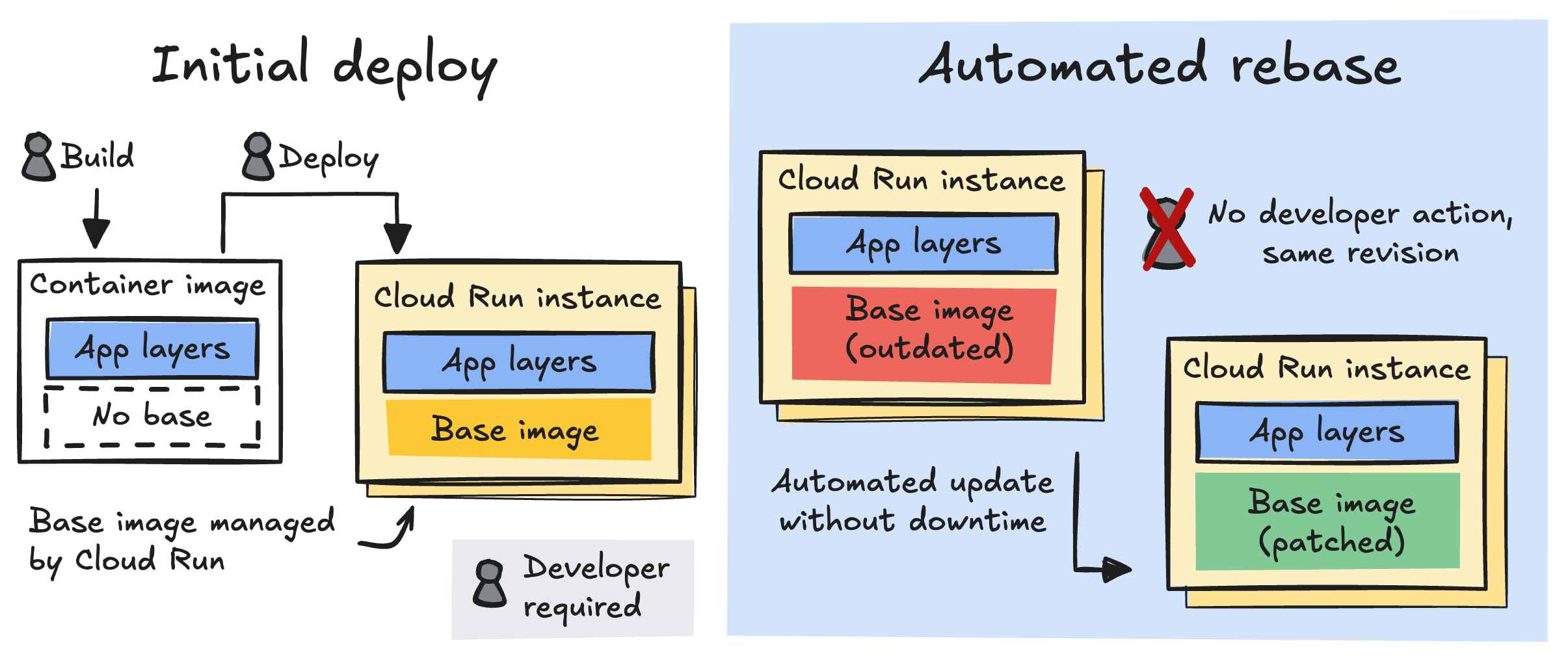
Understanding base images and rebasing
To understand how rebasing works, start with how container images are structured.
I like to think of a container image as a self-contained archive that holds your application and everything it needs to run. Internally, the files are organized in layers that are merged (overlayed) into one unified filesystem when creating a container instance.
At the foundation is the base image. This base image contains the operating system packages (for example those from Debian or Alpine) and, for interpreted languages, the language runtime (such as Node.js or Python). Your application code and its dependencies sit in the layers on top of that base.
Updating base images: rebuild or rebase
If you're using Docker, you'll have to rebuild (docker build) the entire
container image when an update for the base image is released. A build downloads the
updated base image and executes all the build steps to recreate the layers containing
your application and dependencies.
An alternative to rebuilding is rebasing, which takes the existing container image, removes the base image, and replaces it with the newly patched base image. Your application layers remain entirely unchanged. For this to work reliably, the image needs to be rebaseable.
Rebasing requires a rebaseable seam
For rebasing to work reliably, there needs to be a clean separation (a rebaseable seam) between the base image and the application layers. The application layers shouldn't contain files that overwrite files in the base image.
While it's possible to create a rebaseable image using Docker, it requires discipline.
In a Dockerfile, you can run arbitrary shell commands, and it's common to
write Dockerfile instructions that modify system packages or config files within the
base image. As soon as you run apt-get update && apt-get install,
the image is no longer rebaseable. (If you're curious what a rebaseable
Dockerfile looks like on Cloud Run, read
Building rebaseable container images with Docker from scratch.)
There's another way to create container images that are guaranteed to be rebaseable, using buildpacks.
From source to rebaseable container with buildpacks
You can build and containerize applications using Cloud Native Buildpacks (CNB). Instead
of writing a Dockerfile, you use the
pack CLI, and select one of the many open-source builders. A builder contains a set of
buildpacks, and creates a container image in three steps:
-
Detect: The builder analyzes your code to determine which buildpacks to
select. For example, finding a
package.jsonselects a Node.js buildpack. - Build: The selected buildpacks build the app. They download dependencies and compile code.
- Export: The builder collects all application layers produced by the buildpacks and adds them on top of a base image.
Refer to the full lifecycle documentation to learn more. It details two additional steps to improve build performance with caching.
Building with Google Cloud's buildpacks
When you do a source-based deployment to Cloud Run by running
gcloud run deploy in a directory without a Dockerfile, or when
deploying a Cloud Run function, Cloud Run uses
Google Cloud's buildpacks
to turn your source code into a container image. This is an open source
builder that implements the
Cloud Native Buildpacks (CNB) specification.
Google Cloud's buildpacks are an open source version of technology that was originally part of App Engine, Google's first serverless application platform that predated Google Cloud.
Reproduce locally with the pack CLI
While it's convenient that gcloud run deploy handles building the image for
you, you might want to reproduce this on your local machine, and start or inspect the
image locally. You can use the pack CLI and the Google Cloud builder to do
that.
First, make sure you have Docker installed and running (since pack uses
Docker to build OCI images) and
install the pack CLI
on your workstation.
Next, build the image using pack from a directory containing your
application source code (for example, an Express app with package.json and
index.js):
pack build my-app --builder gcr.io/buildpacks/builder
This command produces a local container image named my-app.
Zero-downtime rolling update
Now that you know how Cloud Run turns your source code into a rebaseable container image, here's how the updates work. When you enable base image updates on Cloud Run, it uses runtime rebasing.
First, when deploying a rebaseable image, Cloud Run strips the Google-managed base image
from the container image before storing it internally, and adds only the
identifier of the base image to the service configuration (for example
nodejs24).
Then when it starts a new container instance, it takes the most recent version of that base image, and dynamically overlays the stored application layers onto it when creating the instance's filesystem.
This makes sure that a new instance always has the most recent base image.
This process mimics a rolling restart. Cloud Run spins up new container instances using the patched base image, and as these patched instances come online and pass health checks, Cloud Run routes traffic to them and shuts down the older, unpatched instances.
This means a base image update happens completely transparently, with zero downtime, and without requiring a new deployment or build on your end.
Runtime rebasing in the service YAML
Since the resource definition (service.yaml) is the source of truth for a
Cloud Run service, seeing what changes there when you enable a feature always helps me
build a better mental model of how it works.
If you deployed a service named example-app with base image updates
enabled, set your project ID (export PROJECT_ID="your-project-id") and
inspect its YAML configuration:
gcloud run services describe example-app \
  --project $PROJECT_ID \
  --format export \
  --region europe-west1
There are two interdependent attributes that control rebasing. If one is missing, Cloud Run discards the other and disables the feature.
First, the runtimeClassName in the template spec enables base
image updates:
spec:
  template:
    spec:
      runtimeClassName: run.googleapis.com/linux-base-image-update
Second, a run.googleapis.com/base-images in the
template metadata identifies the base image to use:
spec:
  template:
    metadata:
      annotations:
        run.googleapis.com/base-images: '{"":"europe-west1-docker.pkg.dev/serverless-runtimes/google-24/runtimes/nodejs24"}'
You might notice that the base image is specified as a JSON map with an empty string
("") as the key. This is to support
multi-container deployments (sidecars), where each container can be mapped to its own base image by name.
Limitations and boundaries
When using base image updates on Cloud Run, you should be aware of a few trade-offs.
No custom OS packages
Because you can't modify the base image (and bringing your own base image is not
supported), you can't use custom OS-level packages (such as using
apt-get install in a Dockerfile). If your app relies on
specific system libraries or binaries that are not included in the Google-managed base
images, you need to manage the full image yourself.
Statically compiled binaries vs languages with a runtime
The impact of runtime rebasing depends heavily on your choice of language. For compiled languages such as Go or Rust, the benefits are more limited. System libraries are often baked into the binary through static linking, which means you need a rebuild to update them. In this case, runtime rebasing primarily protects against flaws in the lowest OS-level components, such as root certificates or timezone data.
In contrast, languages with a runtime, such as Node.js, Python, or Java, see the greatest benefit because the runtime environment itself is part of the base image.
Application dependencies are still your responsibility
Base image updates don't update your application-level dependencies. If a vulnerability
emerges in a package like express, you still need to update your
package.json, test your app, and deploy a new revision.
Summary
Cloud Run's runtime rebasing updates your deployed container images automatically with zero downtime by dynamically selecting the most up to date base image when an instance starts. A base image holds the system packages and language runtime.
It's recommended to use the gcloud run deploy command without a Dockerfile;
this triggers Google Cloud's buildpacks to automatically structure your application into
a rebaseable image.
There are a few limitations: you can't install custom OS-level packages, the feature offers fewer benefits for statically compiled binaries, when compared to languages with a runtime (such as Node.js, Java, or Python), and it does not update your application-level dependencies (such as npm packages).
I hope this is useful!
