How to set up a custom domain and HTTPS redirects on Cloud Run
I'll show you how to set up a custom domain for a Cloud Run service using Cloud Load
Balancing instead of the default *.run.app URL. Other options include
Firebase Hosting or a third-party CDN (Cloud Run's built-in domain mapping is in preview
and not recommended for production).
An external Application Load Balancer doesn't have a free tier (see Cloud Load Balancing pricing), but it lets you add Cloud CDN caching, Google Cloud Armor, URL routing across multiple services, and Google-managed SSL certificates.
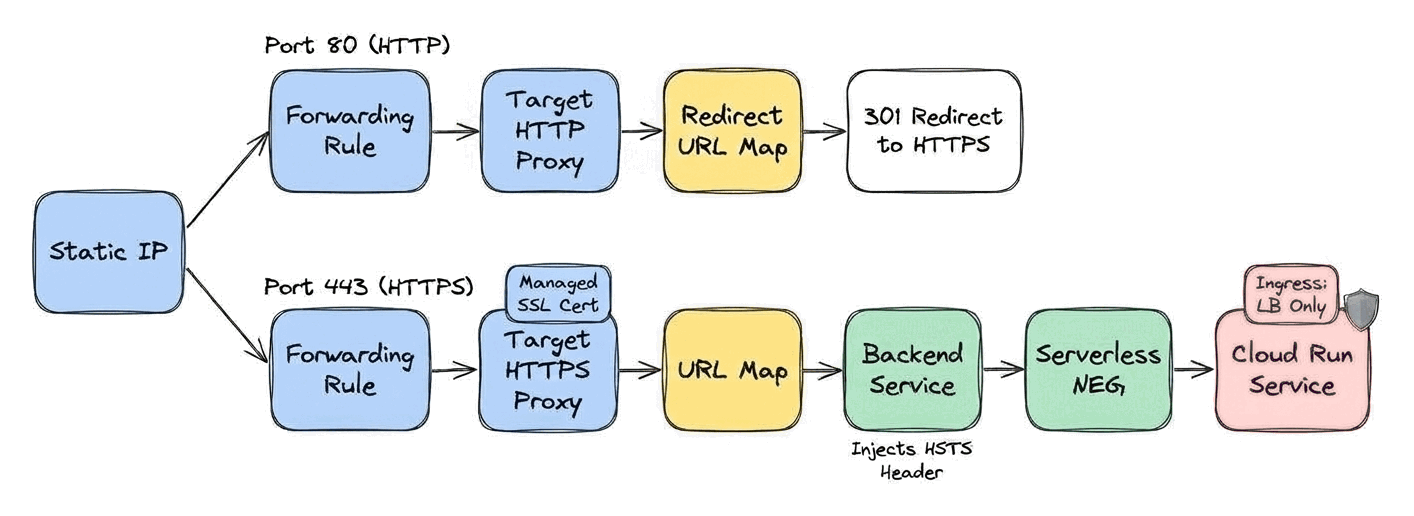
Here's the architecture you're going to build. First, enable the required APIs, reserve a static IP, and update your DNS records. Then, start the provisioning process of a managed SSL certificate. While that's running, deploy a Cloud Run service, and set up the load balancer in front of it, including injected HSTS headers and the HTTP-to-HTTPS redirect.
Prerequisites
Before you start, make sure you have:
- A domain name you control.
gcloudCLI installed and authenticated.- A Google Cloud project with an attached billing account.
1. Enable the required APIs
Enable the Compute Engine (for the load balancer) and Cloud Run APIs in your Google Cloud project.
gcloud services enable compute.googleapis.com run.googleapis.com
2. Reserve a static IP and update DNS
The next step is to reserve a global static IP address and point your domain to it.
Reserve a static IP address
gcloud compute addresses create lb-ip --global
To see your IP address, run:
gcloud compute addresses describe lb-ip --global --format='get(address)'
Update your DNS
Go to your DNS provider and point your domain's A record to the static IP
address you just reserved. By pointing your domain to the load balancer's IP, you give
Google the proof it needs to issue a certificate for that domain. It's how you prove you
own the domain.
Note that Google's validation service needs to reach your load balancer's IP address directly. Intermediate layers such as a third-party CDN can cause the certificate provisioning to fail.
If load balancer authorization doesn't work for you, there's an alternative way to prove ownership that requires creating a CNAME record for validation but offers more flexibility for complex configurations.
3. Provision a managed SSL certificate
To secure your traffic with HTTPS, you need an SSL certificate. Google Cloud handles
provisioning and renewal for you. Replace [DOMAIN_NAME] with your own
domain in the command below.
gcloud compute ssl-certificates create lb-cert \
    --domains=[DOMAIN_NAME] \
    --global
The certificate stays in a PROVISIONING state until the load balancer is
live (you'll create it soon) and DNS is propagated. It typically takes up to 60 minutes
to become ACTIVE once the configuration is complete.
4. Deploy an example Cloud Run service
Now, deploy a web service. I'm using the official NGINX image as an example here. It's a web server, which works great to prove this configuration works. You can deploy your own app later.
gcloud run deploy run-service \
    --image=nginx \
    --region=europe-west1 \
    --allow-unauthenticated \
    --ingress=internal-and-cloud-load-balancing \
    --port=80
The --allow-unauthenticated flag makes the service accessible without IAM
authentication. The --port=80 flag is required because the NGINX image
listens on port 80, whereas Cloud Run defaults to port 8080.
The --ingress=internal-and-cloud-load-balancing flag blocks direct public
access to the default https://run-service-<hash>-ew.a.run.app URL. By
default, Cloud Run sets ingress to all. If clients reach the
*.run.app endpoint directly, they skip the load balancer (along with its
HSTS header injection, HTTP-to-HTTPS redirect, and any Cloud Armor security policies).
With internal-and-cloud-load-balancing, Google's edge proxy rejects direct
requests to *.run.app so external traffic can only enter through the load
balancer.
5. Configure a serverless backend
A serverless backend is a global resource and connects Cloud Load Balancing to your Cloud Run service.
Set up the backend service
The backend service is a central configuration point where you enable features like Cloud CDN caching, Cloud Armor, and custom headers.
gcloud compute backend-services create backend-service \
    --load-balancing-scheme=EXTERNAL_MANAGED \
    --custom-response-header='Strict-Transport-Security: max-age=31536000; includeSubDomains; preload' \
    --global
The --load-balancing-scheme=EXTERNAL_MANAGED flag selects Google Cloud's
global external Application Load Balancer (rather than the legacy
EXTERNAL classic load balancer). The
--custom-response-header flag instructs the load balancer to automatically
inject the Strict-Transport-Security HTTP header into all responses sent
back to the client. This security header tells browsers to never use HTTP to make
requests, preventing
downgrade attacks.
Notice that the command omits the --protocol flag. When configuring an
HTTPS load balancer, it's tempting to pass --protocol=HTTPS. However,
backend services attached to Serverless NEGs don't support port names. Passing
--protocol=HTTPS injects a default port name (https), which
causes gcloud to fail with an API rejection:
Invalid value for field 'resource.portName': 'https'.
Port name is not supported for a backend service with Serverless network endpoint groups.
Omit --protocol (or leave it at the default HTTP scheme). Google Cloud's
internal network automatically manages transport security and encryption between the
edge proxy and Cloud Run.
Create a serverless network endpoint group
Now that you have created a backend service, you can connect the Cloud Run service to it. Cloud Load Balancing requires a regional configuration object for it, a serverless network endpoint group (NEG). This object represents the Cloud Run service within Cloud Load Balancing.
gcloud compute network-endpoint-groups create run-neg \
    --region=europe-west1 \
    --network-endpoint-type=serverless \
    --cloud-run-service=run-service
Add the serverless NEG to the backend service
Plug in the Cloud Run service to the backend using the NEG.
gcloud compute backend-services add-backend backend-service \
    --global \
    --network-endpoint-group=run-neg \
    --network-endpoint-group-region=europe-west1
Create the URL map
The URL map is the router for your load balancer. It inspects the hostname and path of incoming requests and directs them to the appropriate backend service. This configuration specifies to forward all requests to the backend service.
gcloud compute url-maps create url-map \
    --default-service=backend-service
This routing capability is a major advantage of using Cloud Load Balancing over standard
Cloud Run domain mappings. While domain mappings only direct traffic to a single
service, an Application Load Balancer URL map supports path-based routing. You can route
different URL paths to different services (for example, sending /api/* to a
backend service and all other traffic to a frontend web application).
6. Set up the HTTPS frontend
The frontend configuration defines how clients reach your service over HTTPS. It consists of a target proxy and a forwarding rule.
Create the target HTTPS proxy
The target HTTPS proxy terminates the SSL connection using the certificate you created in 3. Provision a managed SSL certificate.
gcloud compute target-https-proxies create https-proxy \
    --ssl-certificates=lb-cert \
    --url-map=url-map
Create the HTTPS forwarding rule
The forwarding rule connects your static IP address and port 443 (HTTPS) to the target proxy.
gcloud compute forwarding-rules create https-rule \
    --load-balancing-scheme=EXTERNAL_MANAGED \
    --address=lb-ip \
    --target-https-proxy=https-proxy \
    --global \
    --ports=443
7. Set up the HTTP-to-HTTPS redirect
The HSTS header tells browsers to always use HTTPS. However, you still need a redirector to catch and upgrade a client's very first unencrypted request, in case they request the HTTP endpoint.
Create the redirect URL map
Import a URL map that returns a 301 Moved Permanently redirect. Passing
--source /dev/stdin <<EOF feeds the YAML redirect specification
directly from standard input without needing a temporary file, and
MOVED_PERMANENTLY_DEFAULT sets the HTTP status code to 301:
gcloud compute url-maps import redirect-map \
    --global \
    --source /dev/stdin <<EOF
name: redirect-map
defaultUrlRedirect:
  redirectResponseCode: MOVED_PERMANENTLY_DEFAULT
  httpsRedirect: True
EOF
Create the target HTTP proxy
gcloud compute target-http-proxies create http-proxy \
    --url-map=redirect-map
Create the HTTP forwarding rule
This rule uses the same static IP as the HTTPS rule, but listens on port 80.
gcloud compute forwarding-rules create http-rule \
    --load-balancing-scheme=EXTERNAL_MANAGED \
    --address=lb-ip \
    --target-http-proxy=http-proxy \
    --global \
    --ports=80
Verification
Once you have completed the configuration, verify that the certificate is active and the redirect and HSTS header work as expected.
Check certificate status
Google proves your domain ownership by attempting to reach your load balancer from
multiple locations across the internet. Monitor the overall certificate status and
per-domain validation status with gcloud:
gcloud compute ssl-certificates describe lb-cert \
    --global \
    --format="get(managed.status,managed.domainStatus)"
When provisioning completes, both statuses report ACTIVE:
ACTIVE example.com=ACTIVE
If you see FAILED_NOT_VISIBLE, it usually means DNS has not yet propagated
to all of Google's validation vantage points, or your load balancer isn't yet reachable
on port 443.
Test HTTPS and redirects
Once the certificate is ACTIVE, test the HTTP redirect with
curl -I (which fetches response headers only):
curl -I http://[DOMAIN_NAME]
HTTP/1.1 301 Moved Permanently
Location: https://[DOMAIN_NAME]:443/
Next, verify that the HTTPS endpoint returns 200 OK along with the
strict-transport-security header:
curl -I https://[DOMAIN_NAME]
HTTP/2 200
server: nginx/1.27.4
strict-transport-security: max-age=31536000; includeSubDomains; preload
Let me know if you run into any questions setting this up!
